Showing posts with label for. Show all posts
Showing posts with label for. Show all posts
Thursday, May 23, 2013
Baldurs Gate for the iPad now available
It has been a long time since I played computer games. After almost a decade of I did some gaming again when I got my first Android Phone. Still in two years, I have downloaded all of 11 games, 7 of which were purchases. Of these 11, I only played one this year.
Most games I have installed have seen less than five hours of use. Only Angry Birds, Robo Defense and Symphony of Eternity have seen countless hours of use. Symphony of Eternity was the last game I bought, and I have been contemplating buying another title from KEMCO GAMES.
But there is one game, even a long time retired gamer like me is looking forward too: Baldurs Gate: Enhanced Edition. I played Baldurs Gate, Icewind and Neverwinters Nights a decade ago. Neverwinter Nights, and its expansion packs, being the last PC Game I played.

Baldurs Gate was awesome. It is the best Dungeons & Dragons franchise translation to the PC, and if I could have one PC Game brought back today, it would be the one. Baldurs Gate Enhanced Edition contains the original Baldurs Gate campaign and the Tales of the Sword Coast expansion.

The game now available for iPad now, with an Android version promised but no updated ETA announced. The game costs a reasonable US$9.99 and is a 1.7 GB download.

It does not look like the it will ported to phones. Given the UI design on the iPad, it would seem to be a tablet only game. Might make the purchase of an iPad mini really worthwhile.
You can buy Baldurs Gate Enhanced Edition at iTunes.

Tuesday, May 21, 2013
Motorola Nexus is a concept for the future with dual stereo speakers
by the designer - might look like.
It’s just a concept, imagined and unreal, we should warn you. But it borrows some interesting cues from current high-end handsets that we’d love to see on a Nexus phone. First, the 5-inch 1080p display, but then also a more powerful Snapdragon 800 processor and dual-front stereo speakers. The camera is also suggested to be 13 megapixel one, hopefully more capable than the one on the current Nexus 4. Right below you can see the concept renders of what such a Nexus
View the Original article
Read more »
It’s just a concept, imagined and unreal, we should warn you. But it borrows some interesting cues from current high-end handsets that we’d love to see on a Nexus phone. First, the 5-inch 1080p display, but then also a more powerful Snapdragon 800 processor and dual-front stereo speakers. The camera is also suggested to be 13 megapixel one, hopefully more capable than the one on the current Nexus 4. Right below you can see the concept renders of what such a Nexus
View the Original article
Monday, May 20, 2013
LG Cosmos 3 and Revere 2 Cheap Phones for Verizon Wireless
Verizon Wireless has announced their two cheap LG phones called Cosmos 3 sliding phone and Revere 2flip phones are available to buy freewith 2-year contract and $189.99 and $199.99 without contract.
They both has 1.3-mega pixels rear camera, microSD card slot for expanding storage, Bluetooth 2.1, GPS and VZ Navigator support for directions.

LG Cosmos 3 has 2-inch slide-out 4-rows QWERTY display screen with 320 x 240 pixels resolution for quick and easy typing, integrated with Facebook and Twitter, dimension 4.41 x 2.06 x 0.63 inches, weight 4.58 oz, battery provides up to 6 hours talk time and 34 days standby.

LG Revere 2 has 1-inch external and 2-inch internal color display with 220 x 176 pixels resolution, dimension 3.78 x 1.95 x 0.72 inches, weight 3.42 oz, 1000mAh battery provides up to 7 hours talk time and 630 hours standby.
Telephony update for Nokia PureView 808 and 701 released

Nokia recently launched two smartphones one Nokia pure view 808 and another Nokia 701, minor but useful upgrade for its two Symbian Smartphones. . Users of both devices previously were reported to be complaining about the calling issues in both the devices globally.

This latest upgrade known as “Telephony Update”. It is the solution to the stated problem. It will also bring calling related improvement to both the devices. It offers better call quality and network related fixes for the smartphones.
Users can expect something new coming up for these devices in the coming days but as of now no this update no new features additions for the devices. The upgrade is available over the air for all the users of Nokia PureView 808 and the Nokia 701 and is small in size. It’s not need to panic because users will get a notification on their device for the upgrading.
Previously also nokia had released upgrades for the Symbian devices. Also added new features and improved the overall experience of the devices. If not many but we hope that this will continue for at least a couple of more years.
HTC One SV and ZTE Force Smartphone for Boost Mobile
Boost Mobile has announced their two Android Smartphone’s HTC One SVand ZTE Force has officially announced by Sprint so both has 4G LTE ultra-fast mobile broadband network support are going to release from 7 March at price of $299.99 and $199.99 respectively without contract.

The HTC One SV has 4.3-inch Super LCD 2 multi-touch screen display with 800 x 480 pixels resolution, 1.2GHz Qualcomm Snapdragon S4 dual core processor, 8GB built-in storage, 1.3-mega pixels front camera, HTC VideoPic allow users to take photos and video at the same time, thickness 9.2 mm and 1800mAh battery.

The ZTE Force has 4-inch multi-touch screen display with 800 x 480 pixels resolution, 1.5GHz dual core processor, 4GB built-in storage, 1-mega pixels front camera and 1730mAh battery.
These Boost Mobile Smartphone’s also has Android 4.0 Ice Cream Sandwich operating system with Sense 4 UI, 5-mega pixels rear camera, 1GB RAM, microSD card slot for expanding storage, 4G LTE and 3G connectivity, Wi-Fi, Bluetooth 4.0, NFC and GPS navigation.
Saturday, May 18, 2013
This Year iPhone 6 and iPhone 5S will Launch Here Some Top Apps and Games Review and Download for 2013 iPhone

1. GarageBand (£2.99/$4.99)
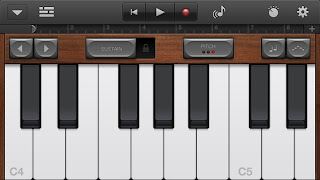
Software instruments on which GarageBand relies are notoriously processor-intensive, and so the iPhone 5s added grunt makes for a stabler, faster, smoother music-making process. The wider screen is also beneficial, giving you a few extra keys when composing and enabling you to see more notes when editing MIDI.
Download GarageBand from iTunes
2. iMovie (£2.99/$4.99)
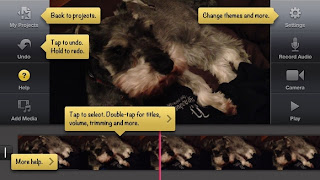
One of the more ambitious apps on the iPhone, iMovie is a movie-making studio in your pocket. The iPhone 5s camera is great for shooting HD, and iMovie enables you to rapidly edit your creations and publish them to YouTube, Vimeo or Facebook.
Download iMovie from iTunes
3. Photogene for iPhone (£0.69/$0.99)
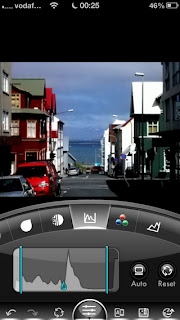
Photogenes interface is a mite quirky, but we prefer it to the rather opaque iPhoto for image-editing. The app includes a number of basic editing tools, export options, special effects and other features, and on an iPhone 5 it flies.
Download from Photogene for iPhone iTunes
4. Camera+ (£0.69/$0.99)
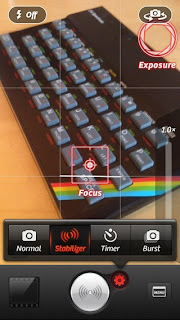
The iPhone 5 includes the best iPhone camera yet, but Apples Camera app is pretty basic. Camera+ is therefore worth investing in if youre serious about iPhone photography.
Youll get access to touch exposure and focus, a stabiliser, a surprisingly reasonable digital zoom, in-app cropping and effects, timers and burst-shooting.
Download Camera+ from iTunes
5. iBooks (free)

Apples iBooks might play second fiddle to Kindle in terms of selection and pricing, but it offers a wonderful reading experience on the iPhone 5. The high-quality screen combined with its revised height (thereby providing more words per page) makes it a no-brainer free download.
Download iBooks from iTunes
6. Flipboard (free)
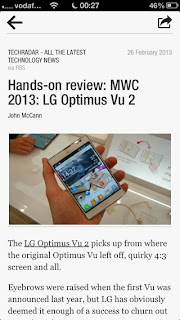
Although perhaps better known on tablets, Flipboard is an essential download for iPhone 5 owners. With minimal set-up, it can become your personal news magazine, filled with beautiful imagery and engaging stories. Again, the iPhone 5s taller screen enables you to see more of anything at any one time, and the devices A6 chip ensures perfect performance.
Download Flipboard from iTunes
7. Reeder (£1.99/$2.99)
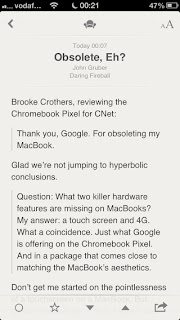
For any iPhone 5 owner wedded to text-based content, Reeder is a must-have download. The client works seamlessly with Fever, Readability and Google Reader, enabling you to easily keep up with your favourite websites. On Apples latest smartphone, Reeder is blazing fast and looks wonderful.
Download Reeder from iTunes
8. Tweetbot (£1.99/$2.99)
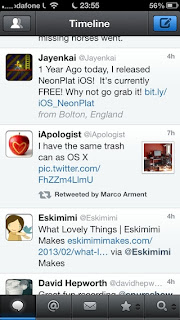
Many smartphone owners would be lost without a Twitter client and Tweetbot is the best there is for iOS. The iPhone 5s taller screen improves the app from a usability standpoint, displaying more tweets and replies at any one time, along with giving the posting screen room to breathe.
Download Tweetbot from iTunes
9. BBC iPlayer (free)
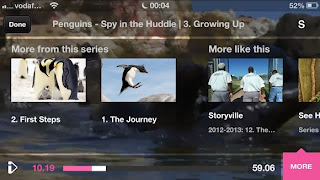
BBC iPlayer has long been the standout on-demand TV app on iOS, and its even better on the iPhone 5, where the picture fills the gorgeous widescreen display. Its also fantastic to see the BBC regularly trumpeting about AirPlay rather than, in the case of many of the corporations rivals, hobbling it.
Download BBC iPlayer from iTunes
10. YouTube (free)

The Apple-created YouTube app was unceremoniously ditched from iOS 6, but Google rose to the challenge and created a replacement. On the iPhone 5, the tall screens great for browsing, and when flipped 90 degrees, its perfect for watching widescreen video. Like BBC iPlayer, YouTube also supports AirPlay.
Download YouTube from iTunes
11. Google Maps (free)
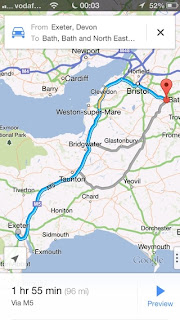
Googles data was also ousted from iOS 6, with Apple instead using its own data, with - to be charitable - decidedly mixed results. This free app is a better bet; its fast and beautifully designed, and the iPhone 5s bigger screen is handy for browsing and also checking out step-by-step directions. On the move, turn-by-turn on 3G also proves effective.
Download Google Maps from iTunes
12. Fantastical (£2.99/$4.99)
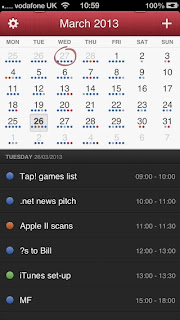
Apples own Calendar app is fine, but Fantastical has two advantages: excellent natural input for events, and an emphasis on a list view, thereby making it easier to see upcoming appointments at a glance. Naturally, the iPhone 5 means being able to view more of these at once, which is fab (unless any of said events mention dentist).
Download Fantastical from iTunes
13. Soulver (£1.99/$2.99)
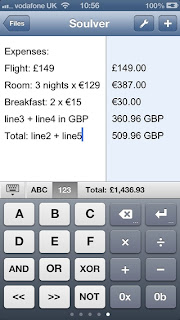
With lots of people banging on about skeuomorphism in apps, its perhaps surprising more products like Soulver dont exist. It rethinks and reinvents the calculator, making it relevant for modern computing, and the result is half spreadsheet, half back of an envelope.
On the iPhone 4, it feels cramped, but on the iPhone 5 theres plenty of room for its line-based calculations.
Download Soulver from iTunes
14. 30/30 (free)
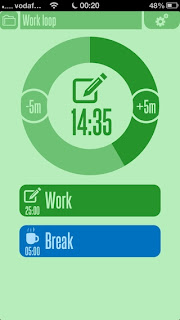
Task managers are commonplace on iOS, but we have a real sweet spot for 30/30. Its beautifully designed, and the straightforward manner in which you can set up task loops makes it perfect for Pomodoro-style time management. IAPs provide extra icons or a thank-you to the author, and the iPhone 5 screen really shows off the sleek interface.
Download 30/30 from iTunes
15. Dropbox (free)
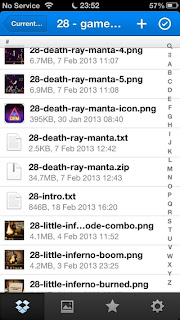
Apples vision of the future is files existing within apps, which is fine if you only use few apps with few documents. For the rest of us, a file system is still required and Dropbox brings this to iOS. On the iPhone 5, the taller screen enables you to see more items at once, but even if Sir Jony Ive had given the device a two-inch square screen, wed still be recommending Dropbox.
Download Dropbox from iTunes
16. Infinity Blade II (£4.99/$6.99)
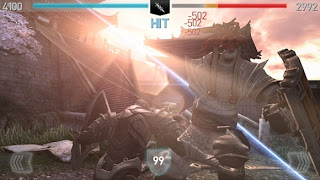
Swipey swordplay with RPG levelling up is what Infinity Blade II is all about. The visuals are gorgeous and the iPhone 5s full resolution is supported. Given the demanding nature of the app, youll be grateful for that A6 chip, too.
Download Infinity Blade II from iTunes
17. Need for Speed Most Wanted (£2.99/$4.99)

The best arcade racer for iOS, Most Wanted is a stupid amount of fun as you speed about, smashing up cops, drifting for miles, and generally being a menace on wheels.On slower hardware, though, dropped frames periodically pull you out of the experience; no such problems on the more powerful iPhone 5.
Download Need for Speed Most Wanted from iTunes
Source: Radar
Friday, May 17, 2013
Windows gets 7 of the tablet market for Q1 of 2013

While Windows RT have not been a smashing success, in part because the full PC version of Windows 8 runs well on tablets. Windows 8 itself has been labeled a failure by many sectors, with a 14% drop in PC sales year-on-year. However, the two criticized operating systems have been a success for Microsoft in a very important arena. Windows 8 and Windows RT have captured 7% of the tablet market in Q1 2013. While, this might not be a roaring success, it is a firm foothold in the largest growing category of consumer electronic devices.
Friday, May 10, 2013
Google Unleashes The Chrome Beta For Android Which Has The Latest Features And A Lot Of Bugs Unlisted On The Play Store

Chrome has always been the browser of choice for my PC but when it comes to my phone, sometimes i feel that Google should just really revert it back to the beta version because it crashes quite often and lags. Well on the iPad, dont even get me started, Safari is way better. Well on to the story, today Google has unleashed the Chrome Beta app for android which allows developers and enthusiasts to try out the nifty new features Google is trying to implement in chrome for android with the exchange of having bugs. The app is unlisted on the Play Store, so click here to go directly to the download page
Source: TheVerge
Subscribe to our blog for up to date tech content or you can follow us on Twitter, add us to your circles in Google+, & like our Facebook page to be updated with the latest tech content. Samsung Galaxy S IV News & Rumors. Tip us about something we are not aware of

Subscribe to our blog for up to date tech content or you can follow us on Twitter, add us to your circles in Google+, & like our Facebook page to be updated with the latest tech content. Samsung Galaxy S IV News & Rumors. Tip us about something we are not aware of
Swype Text Input for Screens
Swype provides a faster and easier way to input text on any screen. With one continuous finger or stylus motion across the screen keyboard, the patented technology enables users to input words faster and easier than other data input methods—at over 40 words per minute. The application is designed to work across a variety of devices such as phones, tablets, game consoles, kiosks, televisions, virtual screens and more.

For More information and videos about Swype visit : http://www.swypeinc.com/
Read more »
Simply Trace a Path
The word “quick” was generated from tracing the path shown above in a fraction of a second, by roughly aiming to pass through the letters of the word. A key advantage to Swype is that there is no need to be very accurate, enabling very rapid

The word “quick” was generated from tracing the path shown above in a fraction of a second, by roughly aiming to pass through the letters of the word. A key advantage to Swype is that there is no need to be very accurate, enabling very rapid
For More information and videos about Swype visit : http://www.swypeinc.com/
Thursday, May 9, 2013
Wednesday, May 8, 2013
Tutorial for Installing Windows XP
Installing/Re-installing Windows XP is a relatively straightforward process providing you have everything you need to hand
Make sure that you have all the things mentioned below is with you
# Windows XP CD.
# Windows XP CD Product Code Number.
# Any relevant drivers - this is not always the case as XP does have many drivers.However, it may be necessary to update the driver that XP initially installs. Be particularly careful with Modem drivers.
# Make sure that your PC can boot from your CD-ROM.
Here are the steps to boot from CD-drive
1. First choose your primary boot from CD
For this while starting computer press "delete" or F2 button[This depends on type of BIOS in your computer] contionusly and enter in BIOS.There you can see a screen like below


To begin installing XP Press Enter.The next screen to appear is the EULA (End user Licence Agreement) Press F8 to accept the licence or ESC if you dont want to accept the licence agreement and want to terminate the install.

After agreeing to the licence agreement set up searches your hard drive for any partitions.The next screen shows all the partitions on your hard drive. You may have just one or several depending upon whether you have created partitions prior to installing Windows XP.

You can select the partition you want to install XP on. Once you have selected the partition press Enter.
The next window will offer to format the partition for you. If the partition is already formatted the option will be leave file format as it is. If it hasnt been previously formatted then you will have the option to either:Usually Installation is made on C-Drive
 There are 4 methods to format they are
* Format the partition using the NTFS file system (Quick)
* Format the partition using the FAT file system (Quick)
* Format the partition using the NTFS file system
* Format the partition using the FAT files system
It is recommended that you use the NTFS file system so select Format the partition using the NTFS file system.Set up will now begin to format your hard drive.
 Once the drive has been formatted windows set up will start copying files to memory.
 Once the copying has been completed windows initialises your configuration and then proceeds to reboot your machine.
 Note :Your system will now reboot.On reboot you will again be presented with Press any key to boot from CD On this occasion DO NOT press any key. Leave well alone. Windows will then automatically launch. If you press any key during this process you will start the set up procedure all over again.

You will now see the Windows XP Graphical interface as windows loads.
Note: If your copy of XP does not include Service Pack 2 the Logo will look slightly different to the one illustrated below in as much as it will display Windows XP Home or Professional. As soon as you upgrade to Service Pack 2 (SP2) the Home/Professional branding will be removed.
 At the next screen Windows will begin copying files to your hard drive.
 As the files are installed on your hard drive you will be asked to select various options. The first to launch is the Regional and Language Options window
 Click the Customise button to select your Country standards, language, etc. Click OK when you are satisfied with your selections.After you have completed that return to the original Regional and language Options window and click the Details button.
 From here you can set the default keyboard language. Click OK when finished.Now click the Next button.The next window asks for your name and company. Fill this in with the relevant details.
After completing the name and company dialogue boxes press Next.Now you are presented with the Product code number screen.
 Insert your product code numbers in the relevant boxes. Take your time here, as inserting the wrong number, will cause an error.After inserting the product code number press Next.Your next screen is the Computer and Administrator password screen.
 XP usually inserts a computer name but you can change it if you want something different.Next insert the Administrator password (you dont need to do this for XP Home Edition) and then confirm the password in the next dialogue box.Click Next to continue.The Date and Time Setting windows now appears.
 Select your Time Zone from the drop down time zone list and XP will make the other adjustments.Finally click the Next button.Windows now starts to install the Networking part of the operating system.
 Assuming you have a Networking Card installed the Networking Settings window will now pop up.The Typical Settings Option should already be selected so simply press the Next button

Unless you are on a Network or Domain you simply need to press the Next button If you are on a Network then click the Yes make this computer a member of the following domain and then click the Next button. You may need to ask your administrator for these details.
Windows will now continue copying files.After a while Windows will finalise the installation. The progress bar will show Completing Installation followed by Installing Start menu icons, registering Components, Saving Settings and, finally, Removing any temporary files used.
After finalisation Windows will again restart your pc.On reboot you will again be presented with Press any key to boot from CD On this occasion DO NOT press any key. Leave well alone. Windows will then automatically launch. If you press any key during this process you will start the set up procedure all over again.You will now see the Windows Logo screen.
Once Windows has loaded it will adjust your monitors resolution. Just click OK to continue.Now you have successfully finished installing your XP on your computer.If you have any questions you can ask in comment section
Read more »
Make sure that you have all the things mentioned below is with you
# Windows XP CD.
# Windows XP CD Product Code Number.
# Any relevant drivers - this is not always the case as XP does have many drivers.However, it may be necessary to update the driver that XP initially installs. Be particularly careful with Modem drivers.
# Make sure that your PC can boot from your CD-ROM.
Here are the steps to boot from CD-drive
1. First choose your primary boot from CD
For this while starting computer press "delete" or F2 button[This depends on type of BIOS in your computer] contionusly and enter in BIOS.There you can see a screen like below
OR
If you are seeing the first screen go to "Boot" in the Top menu or if you are seeing the second screen go "Advanced BIOS Features" and press enter.After that you can choose "First bootable device" as [CDROM]
Then press F10 and press "OK" or "y" to save and exit.Then your computer will restart.Put your Bootable CD into drive.While starting your computer will show a message to "press any key to boot from CDROM"
Press any Key to move forward. Set up will now automatically inspect your computers hardware configuration.After set up has checked your hardware a blue screen will appear with the words Windows set up in the top left hand corner.
After all the files have been loaded into memory the Welcome To Set Up Window appears.
After agreeing to the licence agreement set up searches your hard drive for any partitions.The next screen shows all the partitions on your hard drive. You may have just one or several depending upon whether you have created partitions prior to installing Windows XP.
You can select the partition you want to install XP on. Once you have selected the partition press Enter.
The next window will offer to format the partition for you. If the partition is already formatted the option will be leave file format as it is. If it hasnt been previously formatted then you will have the option to either:Usually Installation is made on C-Drive
* Format the partition using the NTFS file system (Quick)
* Format the partition using the FAT file system (Quick)
* Format the partition using the NTFS file system
* Format the partition using the FAT files system
It is recommended that you use the NTFS file system so select Format the partition using the NTFS file system.Set up will now begin to format your hard drive.
You will now see the Windows XP Graphical interface as windows loads.
Note: If your copy of XP does not include Service Pack 2 the Logo will look slightly different to the one illustrated below in as much as it will display Windows XP Home or Professional. As soon as you upgrade to Service Pack 2 (SP2) the Home/Professional branding will be removed.
After finalisation Windows will again restart your pc.On reboot you will again be presented with Press any key to boot from CD On this occasion DO NOT press any key. Leave well alone. Windows will then automatically launch. If you press any key during this process you will start the set up procedure all over again.You will now see the Windows Logo screen.
Subscribe to:
Posts (Atom)